How-To Guide
The Group
The Group
The Group
How to Perform Data Quality Assurance
This guide provides a step by step walkthrough of conducting Data Quality Assurance in the Collect Module of the ECO-OS ESG Platform.
| |
|---|---|
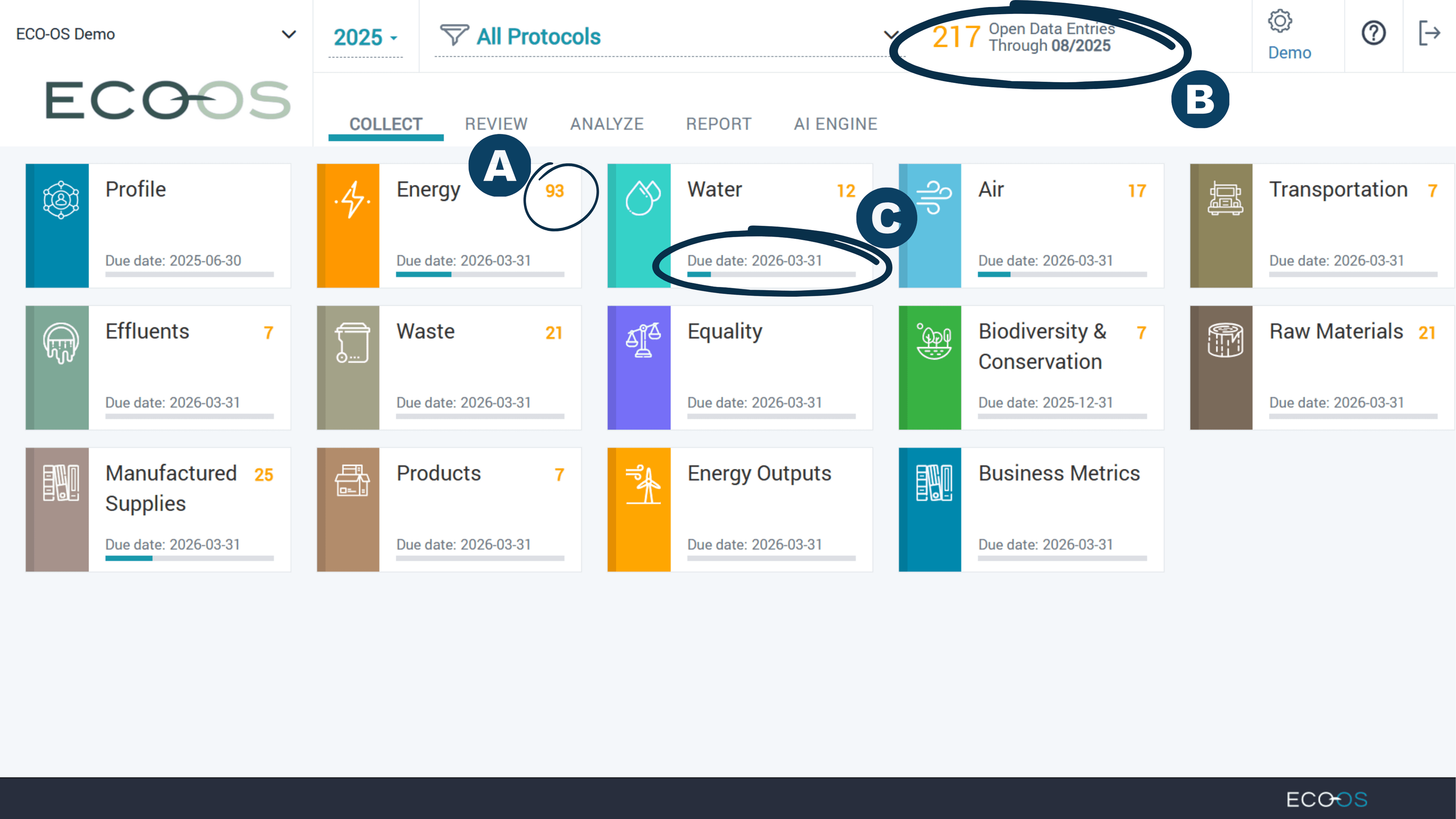
 | On the collect dashboard, see the number of missing data entries for each category in orange. |
 | The total missing count for the selected year appears at the top. |
 | A completeness bar and due date marker indicate the progress in each category. |
 | |
| |
|---|---|
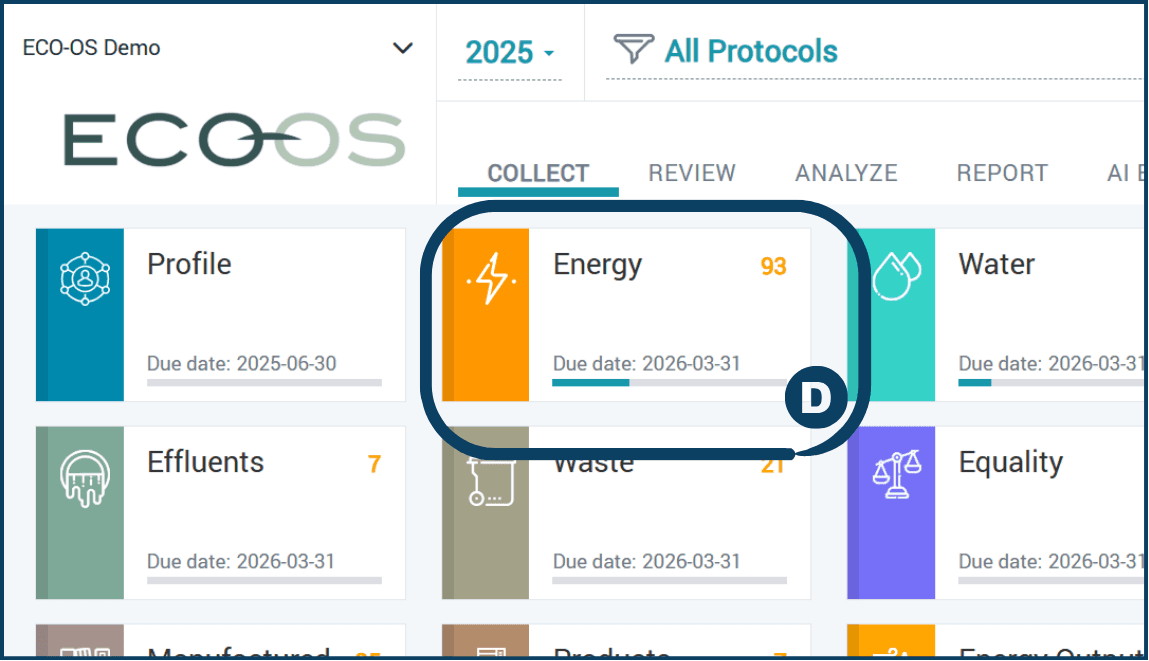
 | Click on the desired category you want to inspect (e.g. Energy). |
 | |
| |
|---|---|
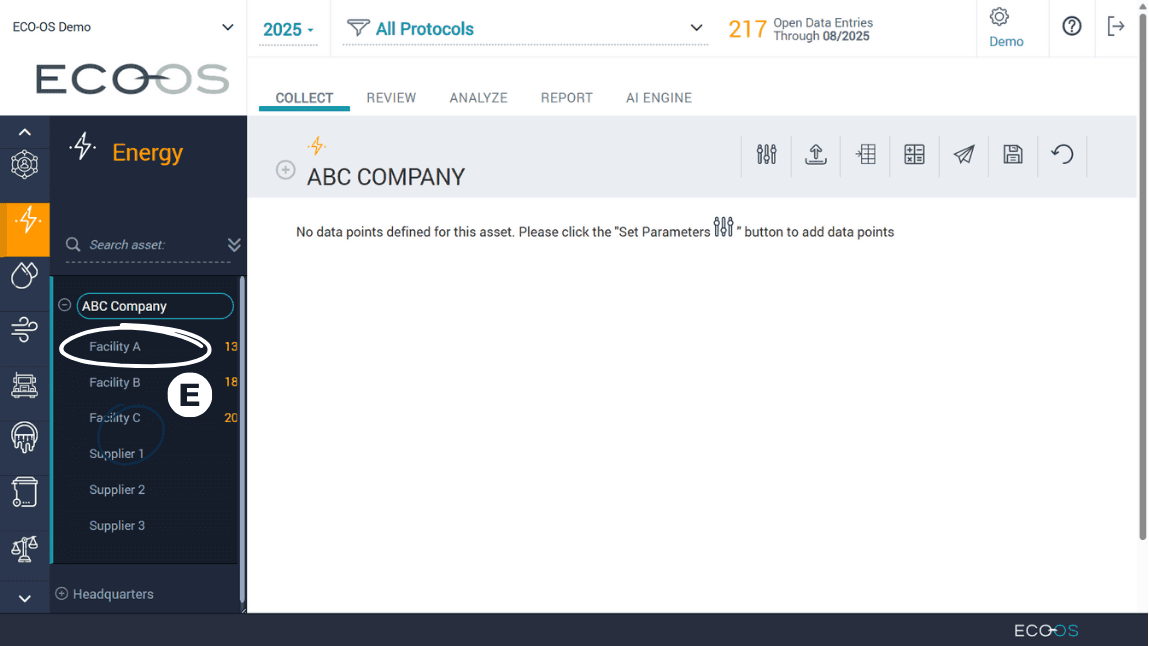
 | Within the chosen category, select the asset you’d like to inspect (e.g., Facility A). |
 | |
| |
|---|---|
 | Click the “+” icon next to the sub-category name to view the data points. |
 | |
| |
|---|---|
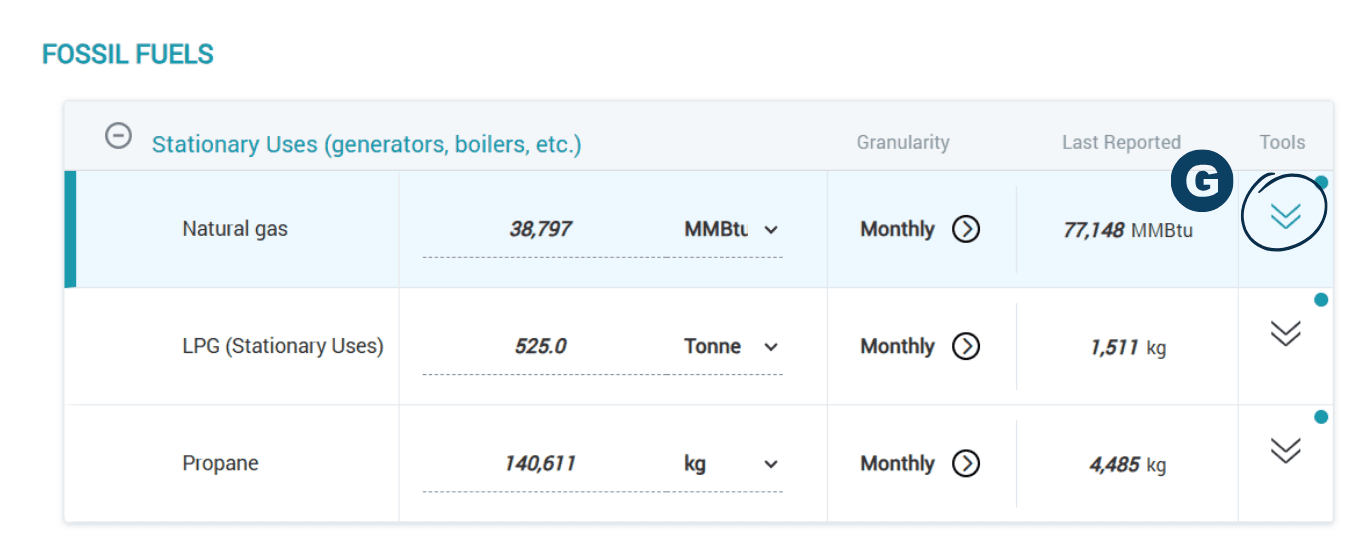
 | Click the double downward arrow to expand the data point toolbar. |
 | |
| |
|---|---|
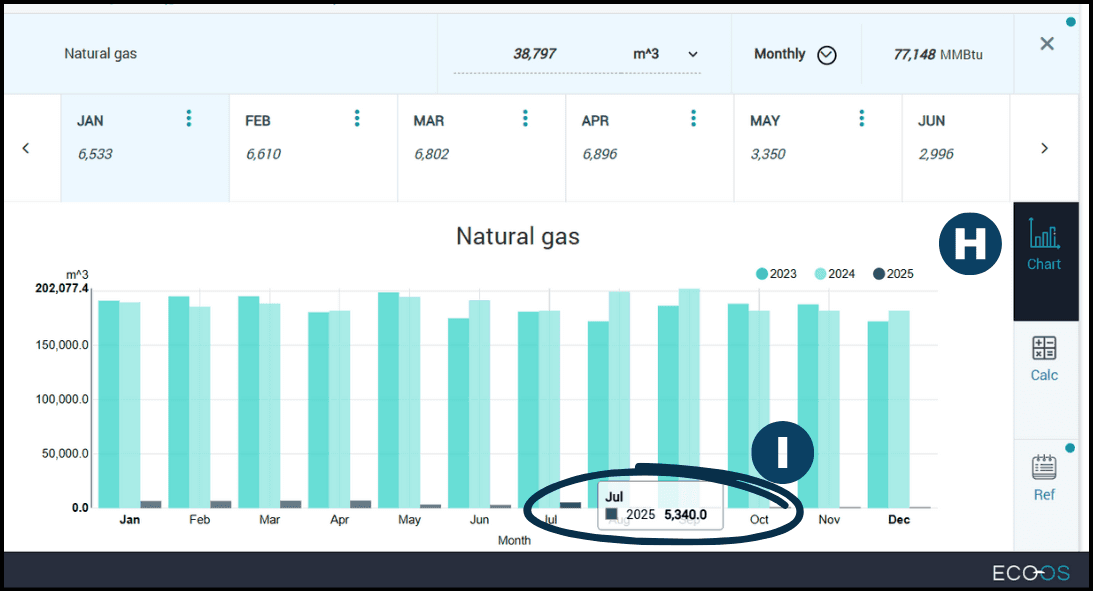
 | Select the “Chart” icon. This displays the values over a 3-year time period. |
 | Hover over each point to see more details and spot any irregular trends. In this case, the 2025 data is significantly lower than previous years. |
 | |
| |
|---|---|
To ensure that data has been entered correctly, conduct the following actions: | |
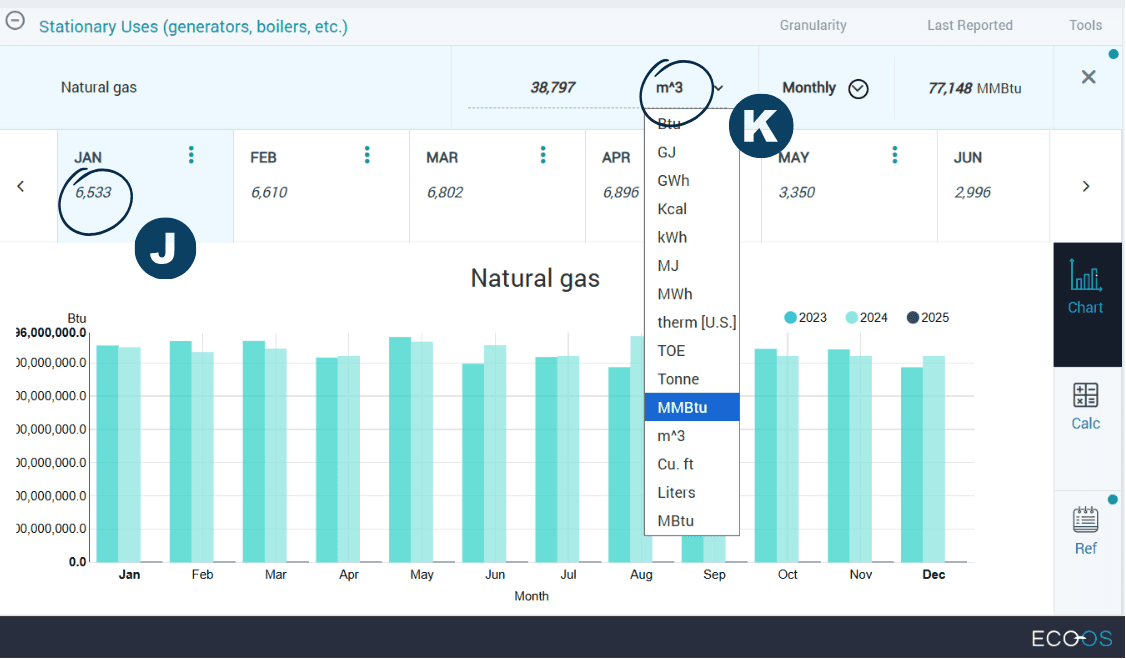
 | Review monthly data against data source to ensure there are no errors. |
 | Check that the units are entered in their original value. In this example, the last reported data was entered in MMBTU, and the recent data was incorrectly entered in m³. Select the correct unit from the drop-down menu. |
 | Note: Non-whole numbers must be represented using a decimal point [e.g. 100.55] and not using a comma [100,55] |
 | |
| |
|---|---|
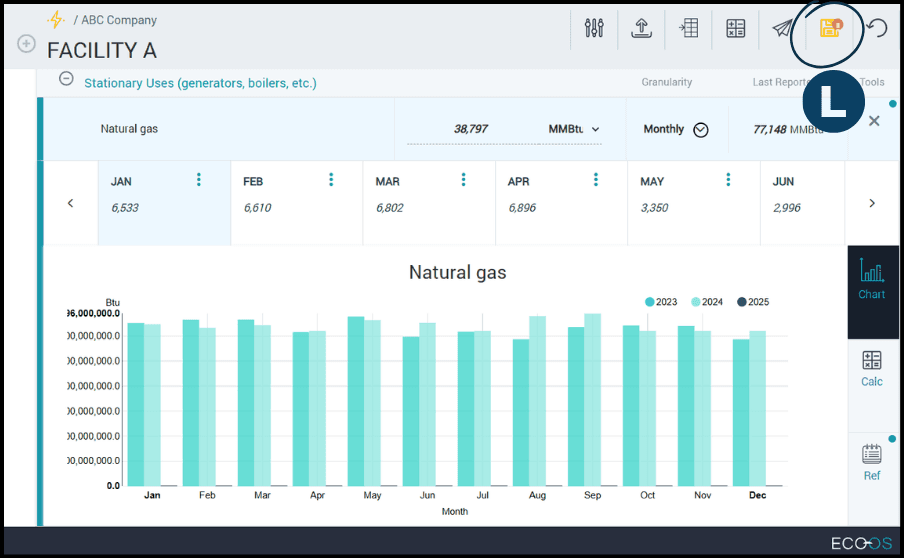
 | Click the blinking yellow disc icon to save your changes. |
 | |
| |
|---|---|
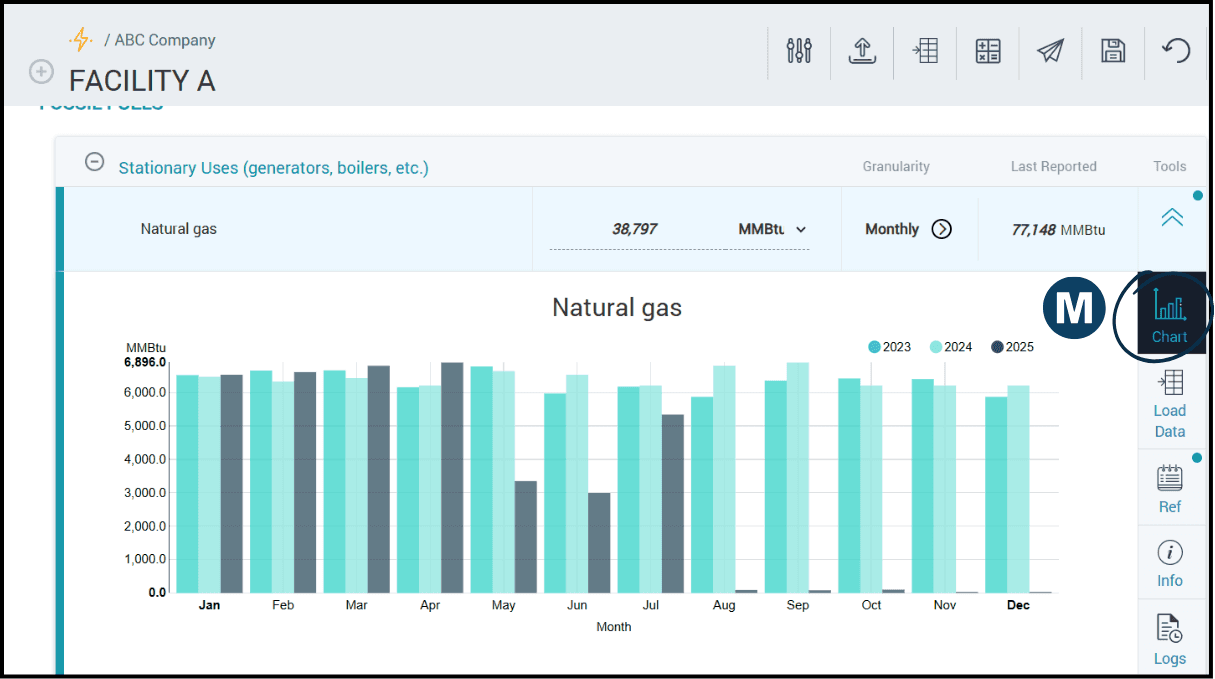
 | Click on the “Chart” icon or refresh the internet browser to see the chart updated with the new data. |
 | |
| |
|---|---|
| On the collect dashboard, see the number of missing data entries for each category in orange. |
| The total missing count for the selected year appears at the top. |
| A completeness bar and due date marker indicate the progress in each category. |
| |
| |
|---|---|
| Click on the desired category you want to inspect (e.g. Energy). |
| |
| |
|---|---|
| Within the chosen category, select the asset you’d like to inspect (e.g., Facility A). |
| |
| |
|---|---|
| Click the “+” icon next to the sub-category name to view the data points. |
| |
| |
|---|---|
| Click the double downward arrow to expand the data point toolbar. |
| |
| |
|---|---|
| Select the “Chart” icon. This displays the values over a 3-year time period. |
| Hover over each point to see more details and spot any irregular trends. In this case, the 2025 data is significantly lower than previous years. |
| |
| |
|---|---|
To ensure that data has been entered correctly, conduct the following actions: | |
| Review monthly data against data source to ensure there are no errors. |
| Check that the units are entered in their original value. In this example, the last reported data was entered in MMBTU, and the recent data was incorrectly entered in m³. Select the correct unit from the drop-down menu. |
| Note: Non-whole numbers must be represented using a decimal point [e.g. 100.55] and not using a comma [100,55] |
| |
| |
|---|---|
| Click the blinking yellow disc icon to save your changes. |
| |
| |
|---|---|
| Click on the “Chart” icon or refresh the internet browser to see the chart updated with the new data. |
| |
Subscribe to our Mailing List
Join our list for product news, expert-led webinars, industry updates, and insights from the blog— never spammy, always actionable. Unsubscribe anytime.