Single Sign-On (SSO)

In this guide, you’ll learn how to log in to your ECO-OS account using Single Sign-On (SSO), to simplify user access, improve security, and centralize authentication through your organization’s existing systems.


Search keywords:
Forgot Password, Reset Password, Automatic sign-on, Login


  1. The Log In Screen

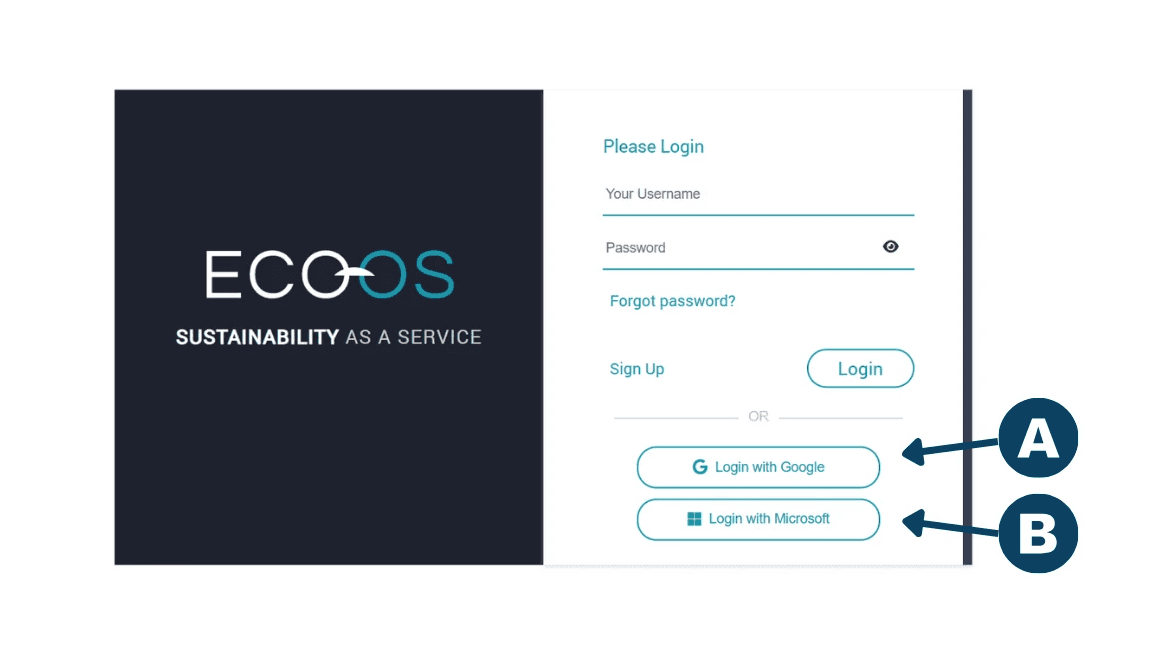
Navigate to https://app1.ecoos.co/login/ to access the main log in screen. From there, select the Single Sign-On (SSO) option that matches your organization’s email provider.

Log in with Google – select this option if your organization’s email is hosted on Google Workspace.

Log in with Microsoft – select this option if your organization uses Microsoft (Azure AD / Office 365) for email and authentication.

  1. Google Credentials

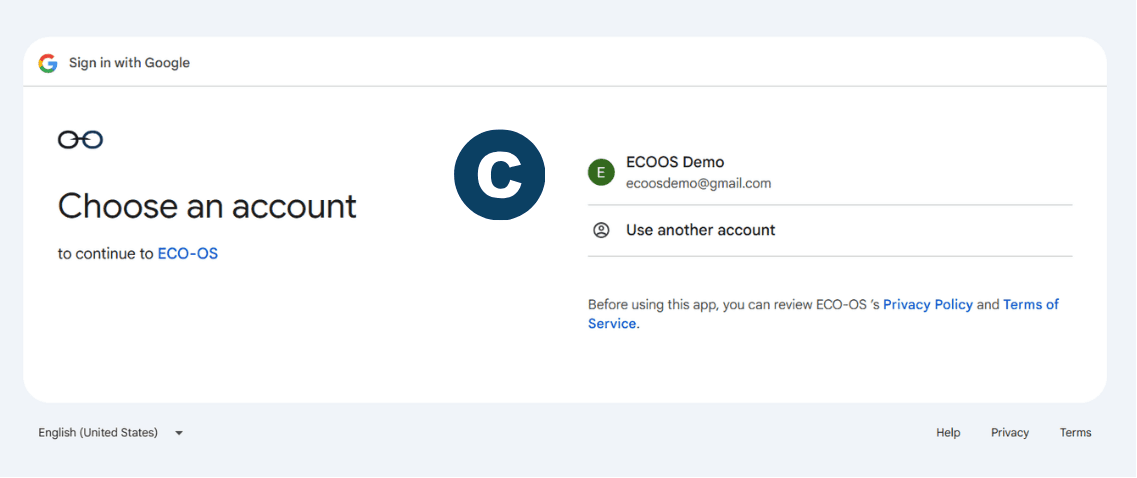
For Google: Select the account associated with your organization to continue. If your account is not listed, click “Use another account” and sign in with your corporate email credentials.


  1. Microsoft Credentials

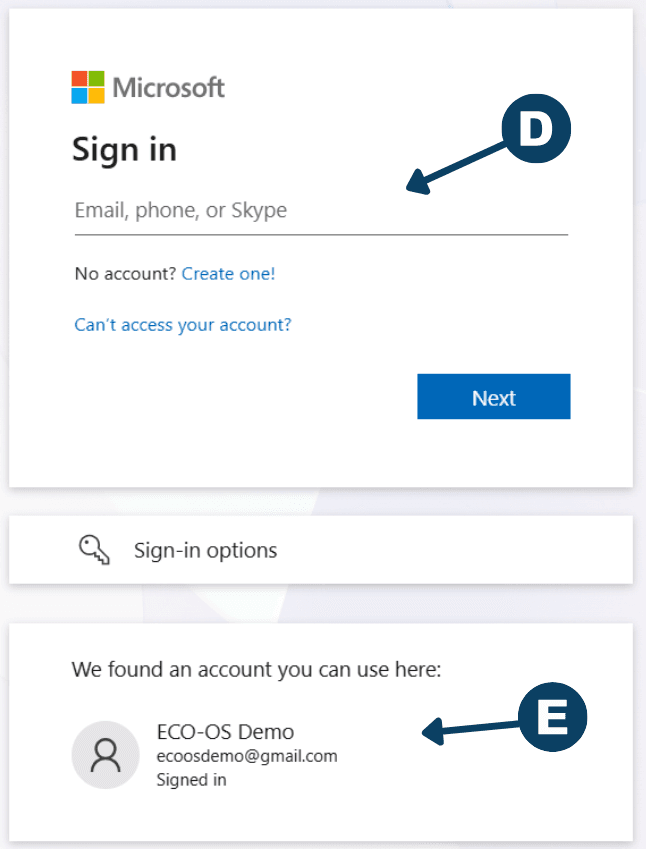
For Microsoft: Enter your corporate email address and click Next.

If your account is recognized, select it from the list to continue signing in.


  1. Complete Your Microsoft Log In

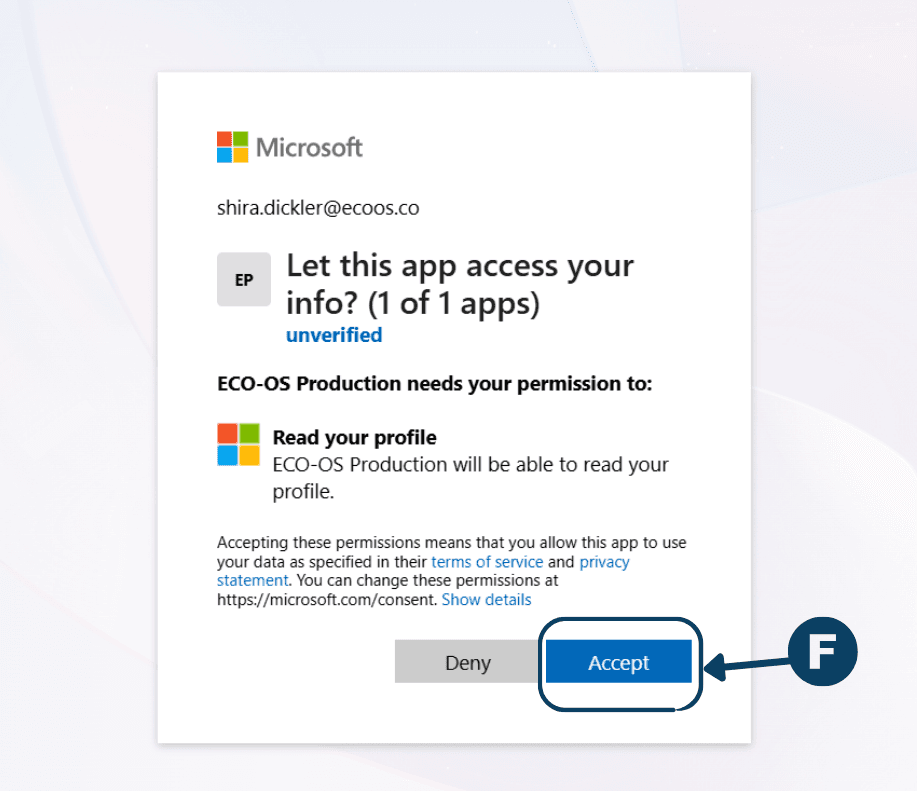
Complete your log in by selecting Accept in the pop up window.


  1. The Log In Screen

Navigate to https://app1.ecoos.co/login/ to access the main log in screen. From there, select the Single Sign-On (SSO) option that matches your organization’s email provider.

Log in with Google – select this option if your organization’s email is hosted on Google Workspace.

Log in with Microsoft – select this option if your organization uses Microsoft (Azure AD / Office 365) for email and authentication.

  1. Google Credentials

For Google: Select the account associated with your organization to continue. If your account is not listed, click “Use another account” and sign in with your corporate email credentials.


  1. Microsoft Credentials

For Microsoft: Enter your corporate email address and click Next.

If your account is recognized, select it from the list to continue signing in.


  1. Complete Your Microsoft Log In

Complete your log in by selecting Accept in the pop up window.


Have questions about this guide or need more support?
Check out the rest of the ECO-OS Academy content, or contact our support team: support@ecoos.co

Visit the Academy

Subscribe to our Mailing List

Join our list for product news, expert-led webinars, industry updates, and insights from the blog— never spammy, always actionable. Unsubscribe anytime.